01
Show assigned route and mission lists.
Step 05
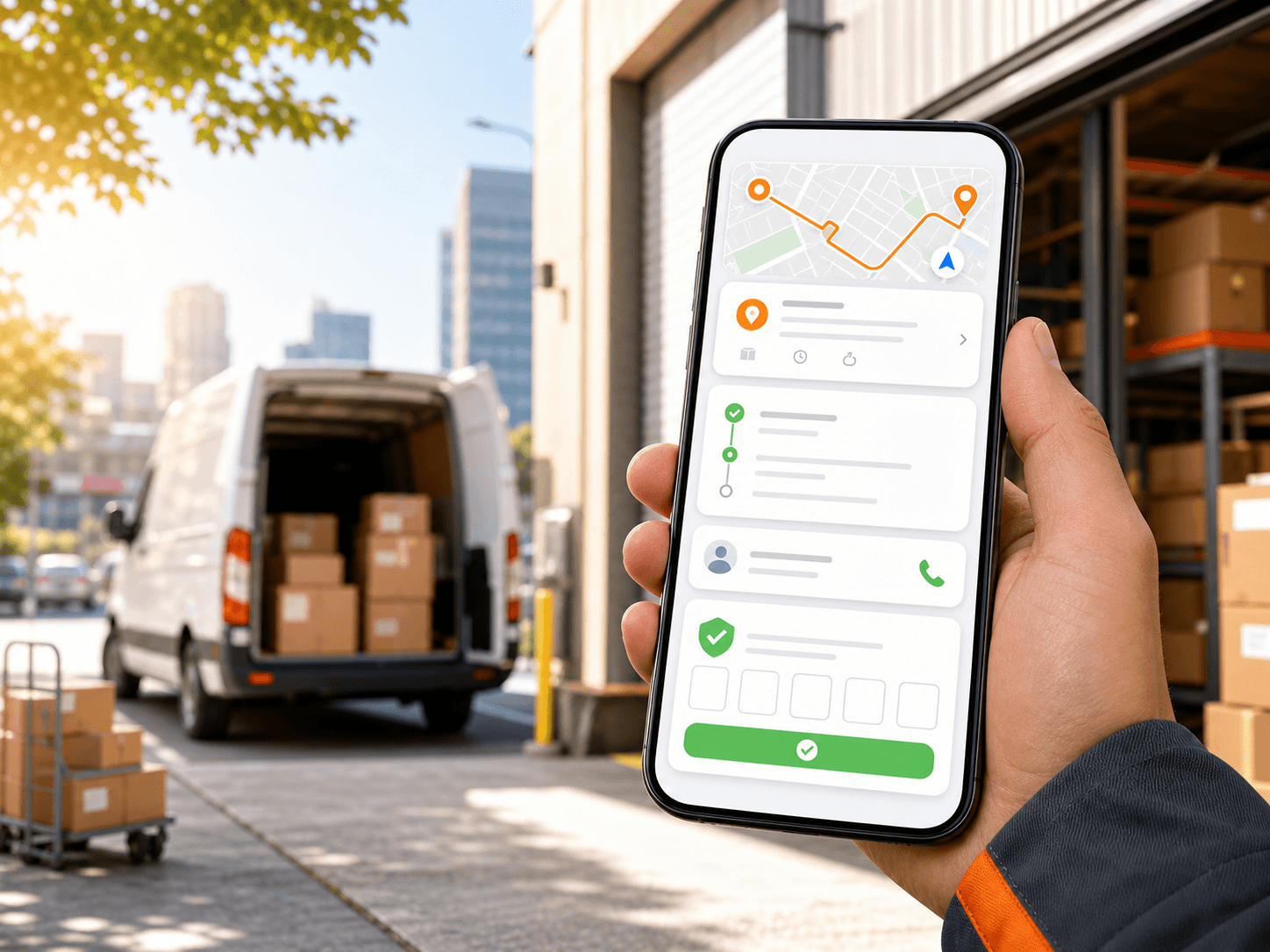
Drivers use the mobile app to view assigned routes and missions, open mission details, navigate to stops, update delivery status, review delivery history, and verify proof codes when required.
Primary keyword: driver delivery workflow
7
workflow steps
3
import formats
200
starter credits
Step outcome
By the end of driver execution, route status and completion details flow back into the operating workflow.
01
Show assigned route and mission lists.
02
Display address, phone, time window, duration, and status details.
03
Support navigation from the mobile workflow.
04
Let drivers update delivery status during the route.
05
Verify customer proof codes when required.
Related product pages
FAQ
Drivers see assigned routes, mission details, addresses, time windows, navigation options, status controls, delivery history, and proof-of-delivery code verification when required.
Yes. Drivers can update mission status from the mobile workflow as they complete route work.
Ready to replace manual routing?
Start with 200 scheduled order credits and test setup, import, optimization, dispatch, monitoring, proof, and reporting in Rouptimize.