01
Select missions and active vehicles for the planning run.
Step 03
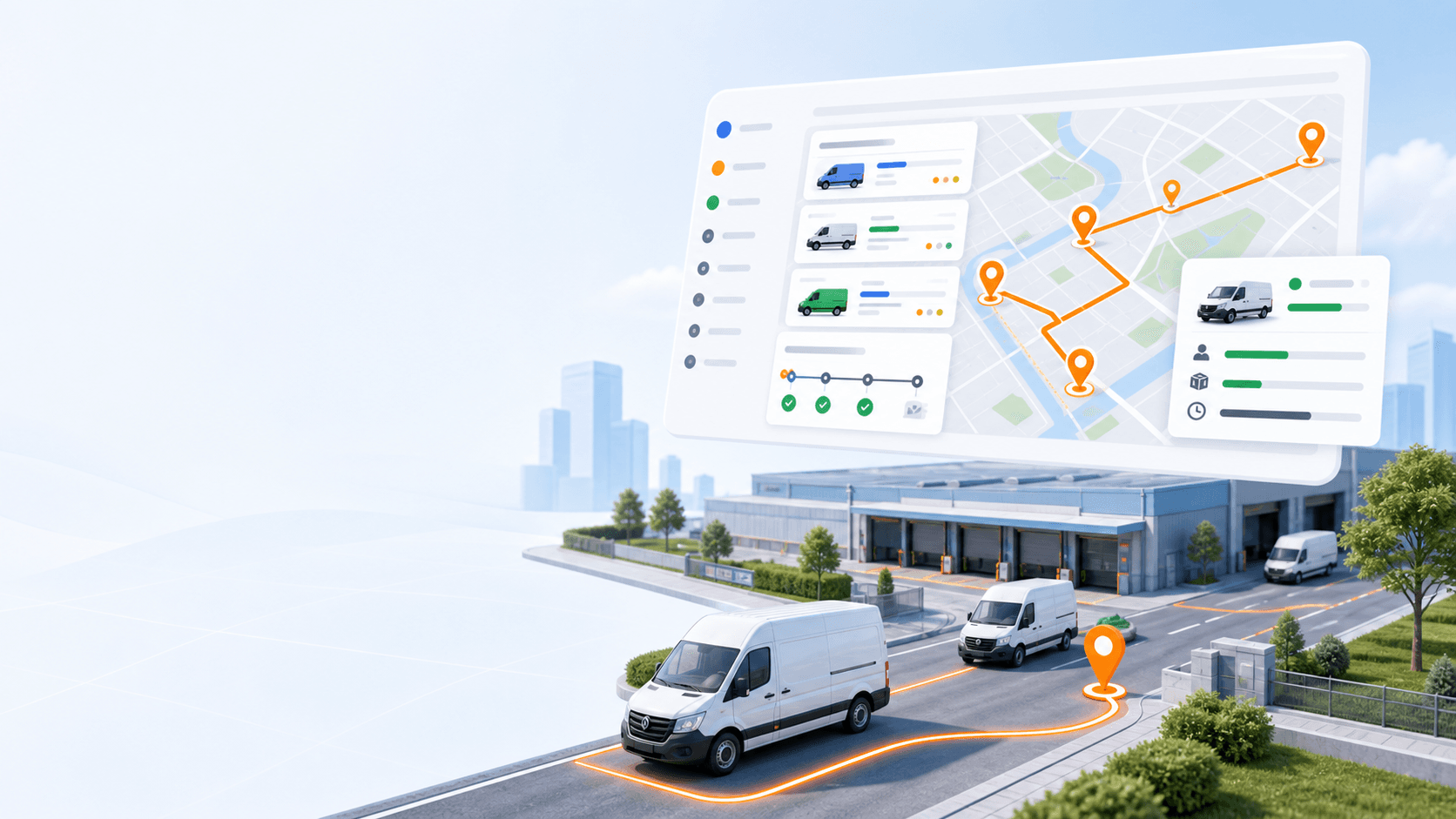
Select missions and vehicles, set the working window, add optional depot start or end settings, and generate routes around real dispatch constraints. If missions cannot be assigned by the result, they stay visible for dispatcher review.
Primary keyword: route optimization process
7
workflow steps
3
import formats
200
starter credits
Step outcome
By the end of optimization, dispatchers have a route plan they can review, adjust, and dispatch to drivers.
01
Select missions and active vehicles for the planning run.
02
Use time windows, service duration, capacity, skills, priority, working hours, and depot options.
03
Generate multi-vehicle route plans.
04
Review distance, duration, ETA, and assigned work.
05
Keep unassigned missions visible for manual handling.
Related product pages
FAQ
Rouptimize uses selected missions, active vehicles, working windows, depot options, vehicle capacity, skills, mission priority, time windows, and service duration to generate route plans that dispatchers can review and adjust.
Yes. Missions that cannot be assigned by the optimization result remain visible so dispatchers can handle them manually.
Ready to replace manual routing?
Start with 200 scheduled order credits and test setup, import, optimization, dispatch, monitoring, proof, and reporting in Rouptimize.