
How Rouptimize works

HowRouptimizeturnsdeliveryordersintooptimizedroutes

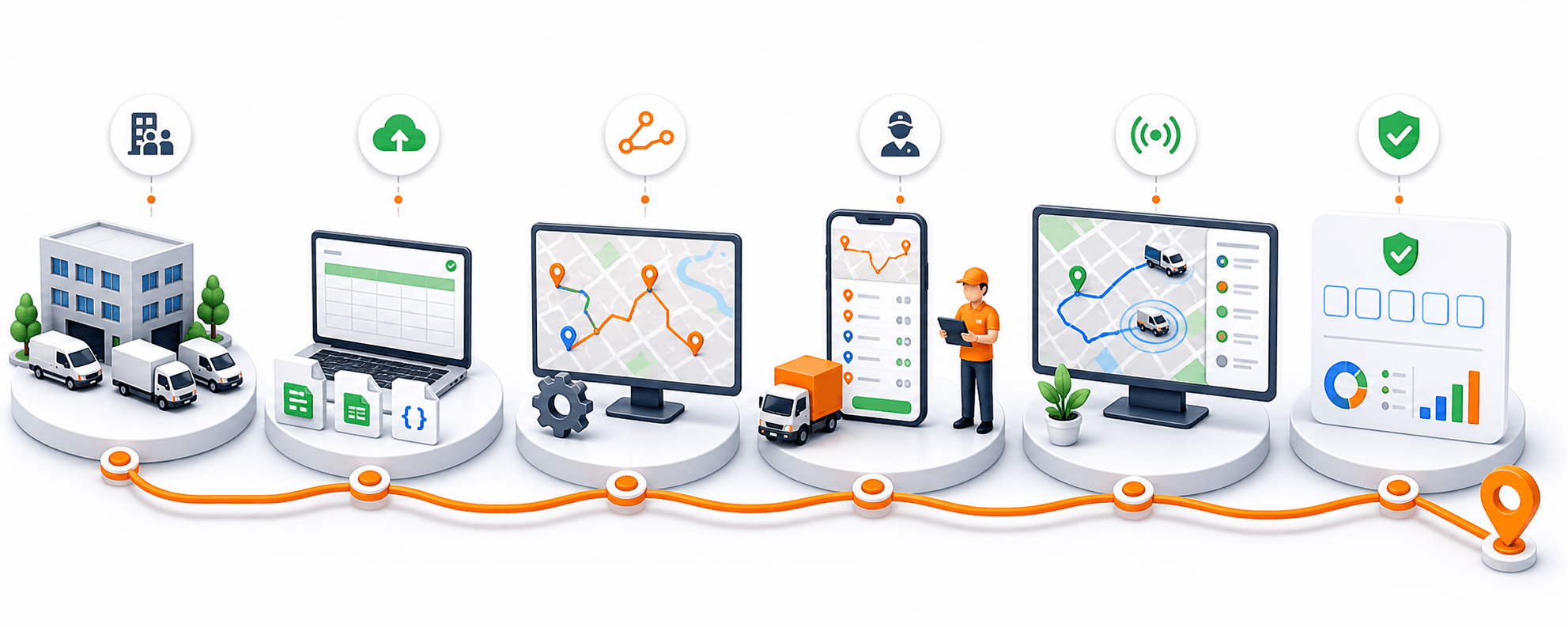
Rouptimize connects the daily delivery workflow in one platform. Set up your operation, import or create missions, optimize routes, dispatch work to drivers, monitor active deliveries, verify completion with customer codes, and review performance after the route is done.

Start with 200 scheduled order credits. Web dispatcher tools, driver mobile app access, reports, billing, and support are included.

Seven-step Rouptimize delivery workflow from setup to proof and reporting

7

workflow steps

3

import formats

200

starter credits

Workflow overview

One workflow from order data to completed delivery

Most dispatch teams need more than a route line on a map. Rouptimize keeps the operating context around each route visible: who can drive, which vehicle is available, what each stop requires, when work should happen, whether the driver is moving, and how completion is verified.

Set up branches, depots, vehicles, drivers, and users

Step 01

Set up branches, depots, vehicles, drivers, and users

Start by creating the operating structure behind every route. Add the company context, branches, depots, users, roles, permissions, vehicles, drivers, and vehicle-driver assignments so dispatchers can plan with real availability and access controls.

Import or create delivery and pickup-delivery missions

Step 02

Import or create delivery and pickup-delivery missions

Load the day's delivery work into Rouptimize by creating missions manually or importing CSV, XLSX, and JSON files. Mission details can include delivery and pickup locations, customer details, time windows, duration, item count, weight, volume, required skills, and priority.

Optimize routes around real delivery constraints

Step 03

Optimize routes around real delivery constraints

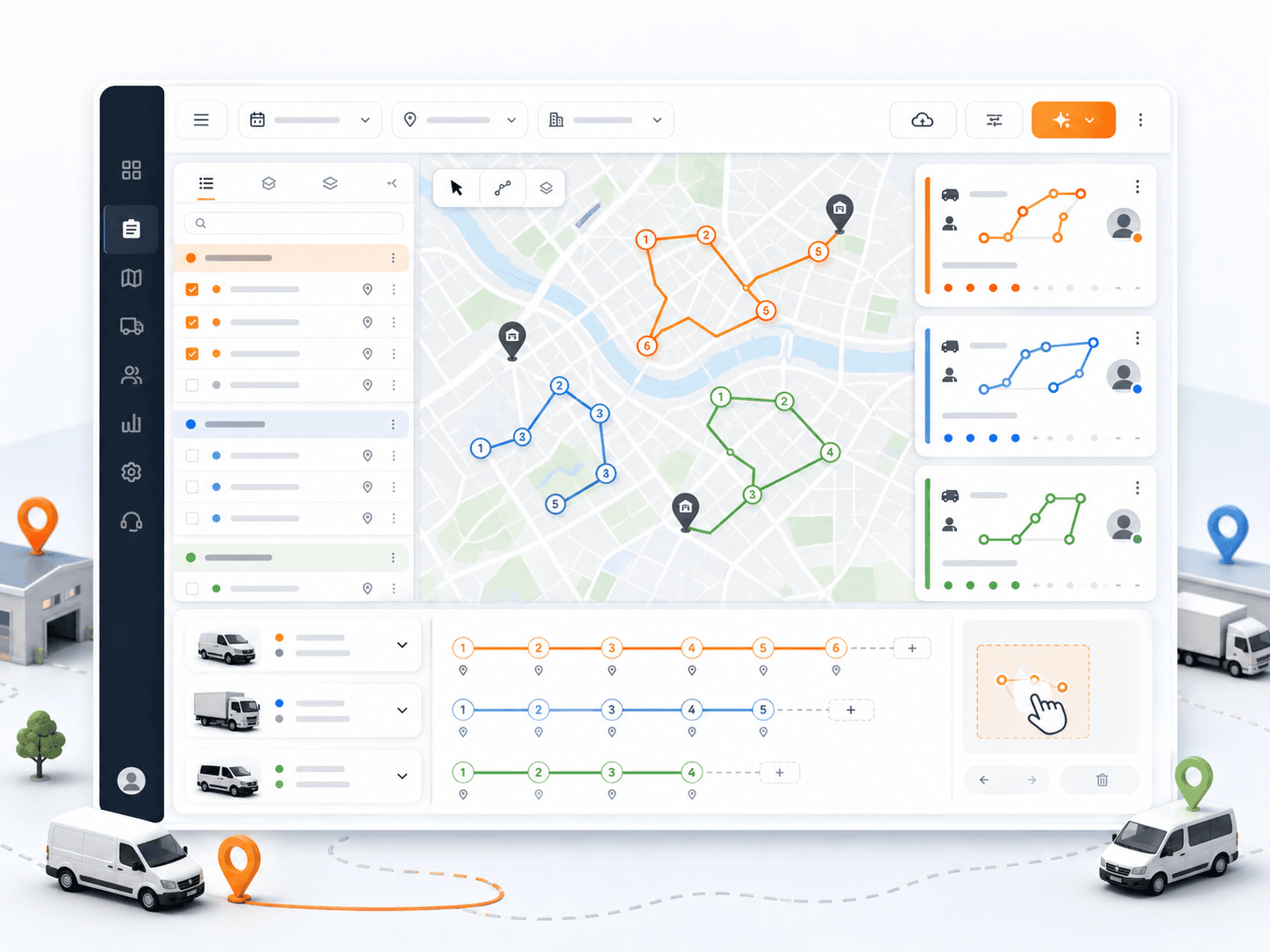
Select missions and vehicles, set the working window, add optional depot start or end settings, and generate routes around real dispatch constraints. If missions cannot be assigned by the result, they stay visible for dispatcher review.

Review, assign, adjust, and dispatch route work

Step 04

Review, assign, adjust, and dispatch route work

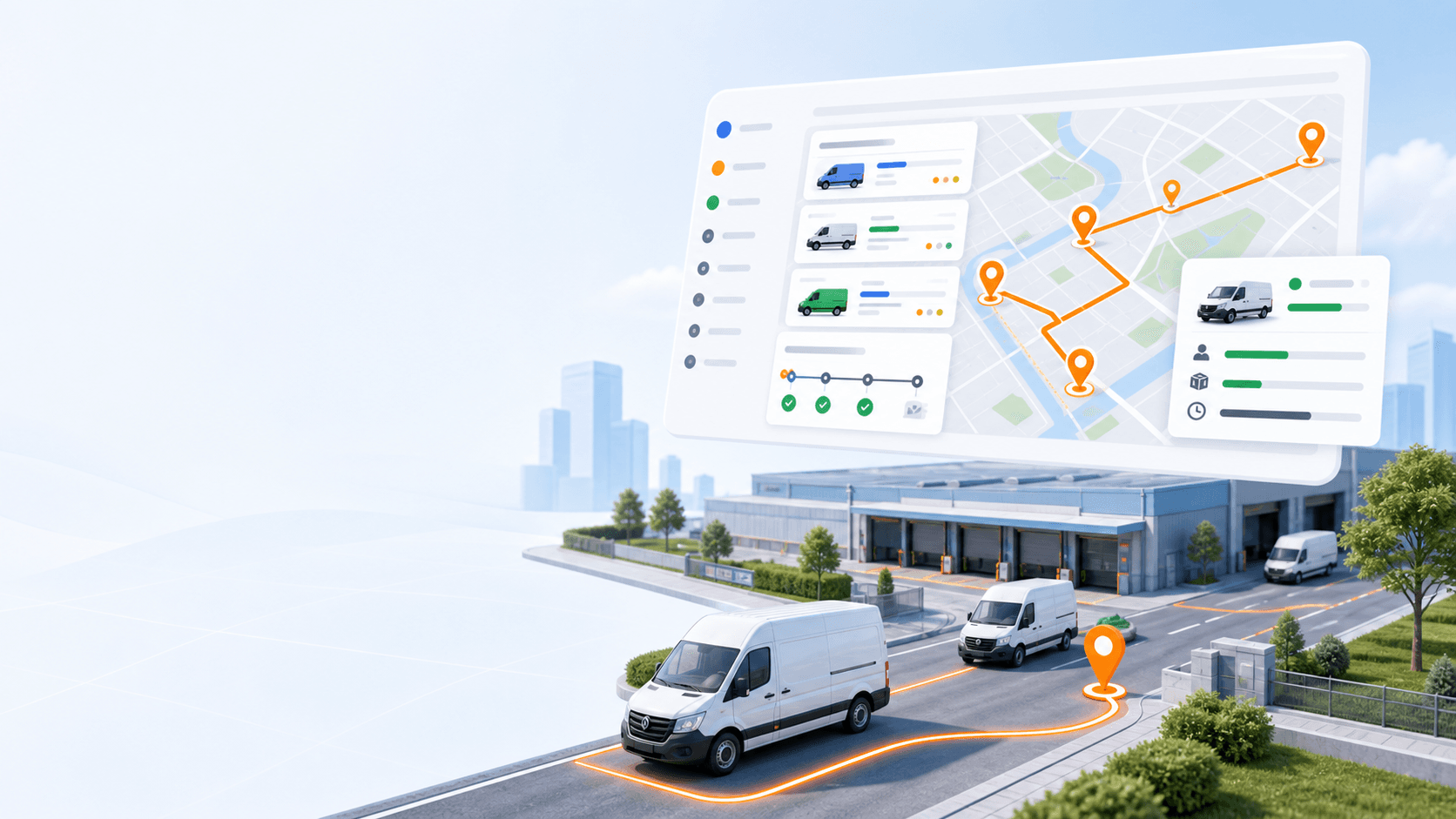
Review route cards, map context, route geometry, stop order, vehicle assignment, driver assignment, and manual changes before sending work to drivers. Dispatchers can reorder stops or adjust assignments when the day changes.

Drivers complete route work from the mobile app

Step 05

Drivers complete route work from the mobile app

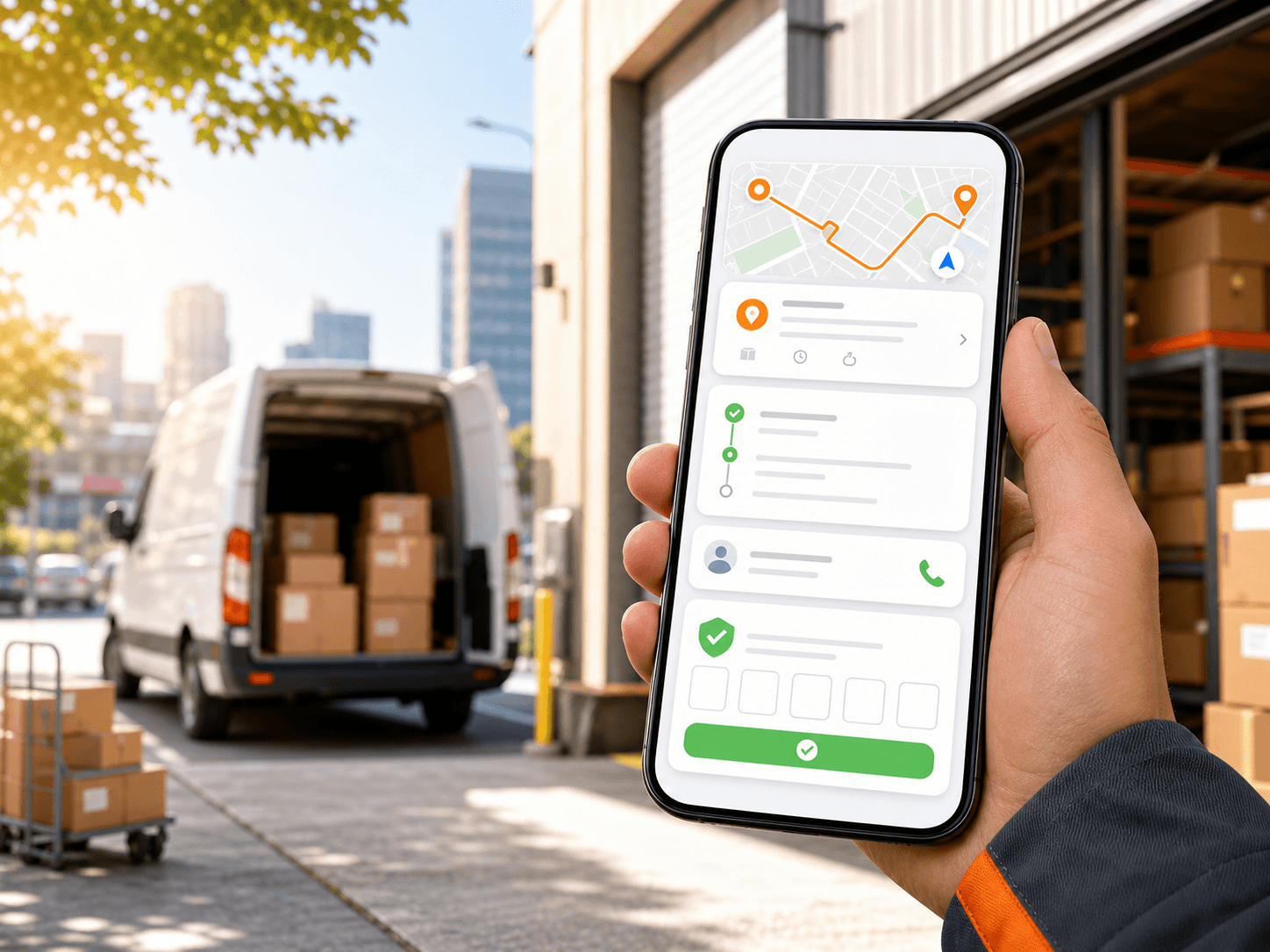
Drivers use the mobile app to view assigned routes and missions, open mission details, navigate to stops, update delivery status, review delivery history, and verify proof codes when required.

Monitor active deliveries while routes are in progress

Step 06

Monitor active deliveries while routes are in progress

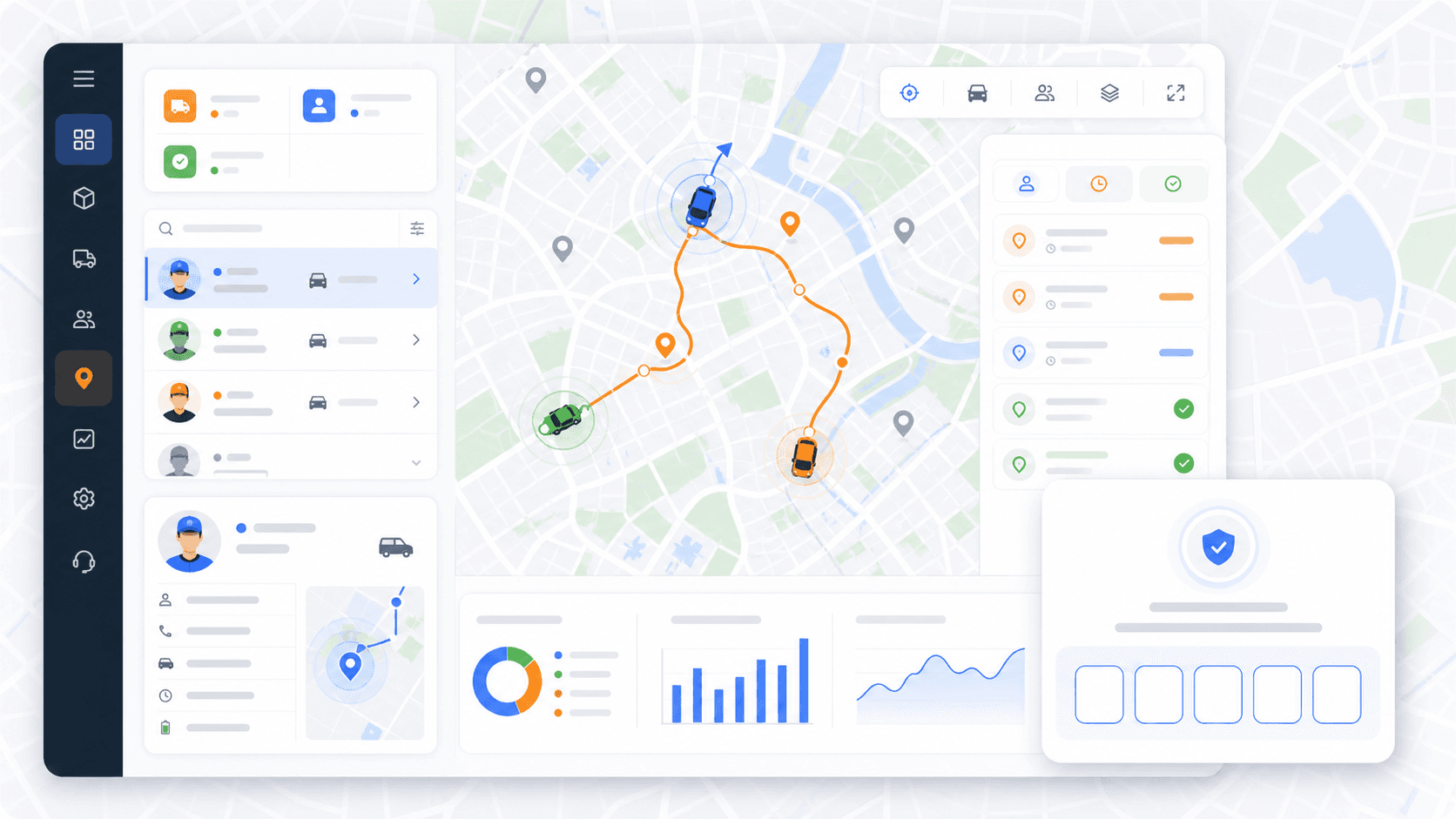
Dispatchers monitor selected drivers and vehicles while routes are active. When mobile location streaming is enabled, monitoring can show live location, speed, last update, vehicle context, today's missions, and status-aware mission markers.

Verify proof of delivery and review performance reports

Step 07

Verify proof of delivery and review performance reports

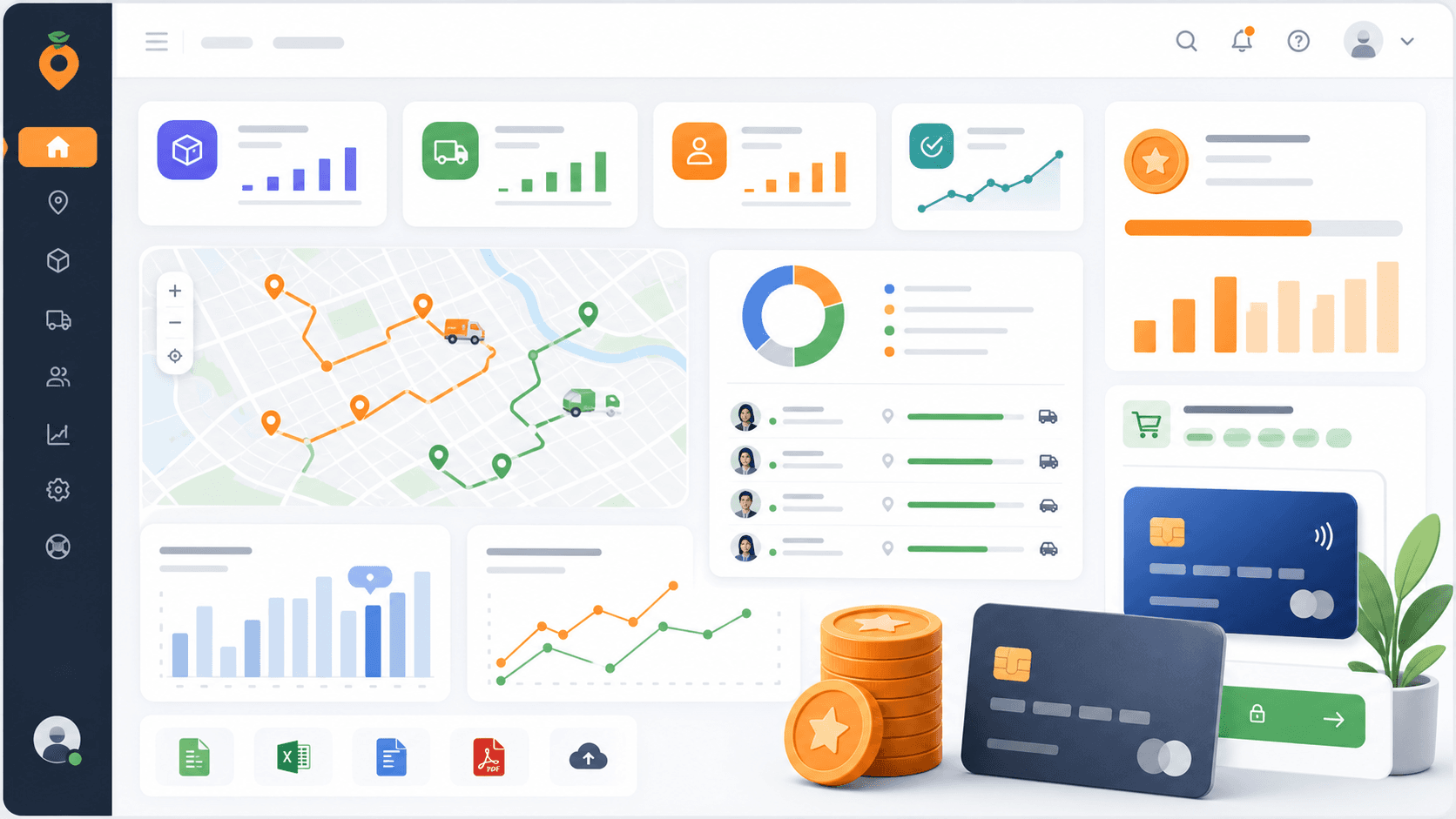
After route work is completed, teams can verify customer delivery codes, review proofed delivery states, inspect delivery history, and use reports to understand mission, driver, route, fleet, distance, duration, and success-rate performance.

Manual planning vs Rouptimize

Replace scattered planning with one visible dispatch loop

Before

Spreadsheets, manual map checks, separate driver messages, unclear assignment state, limited proof visibility, and hard-to-review route performance.

With Rouptimize

Validated imports, constraint-based routes, visible dispatch assignments, driver app updates, live monitoring, code-based proof, and reporting.

FAQ

Questions about the workflow

How long does it take to start using Rouptimize?+

Teams can begin by setting up company details, branches, depots, vehicles, drivers, and users, then importing or creating missions for the first dispatch workflow.

Can I import orders from a file?+

Yes. Rouptimize supports mission import from CSV, Excel XLSX, and JSON files with validation before the final import.

Can dispatchers edit routes after optimization?+

Yes. Dispatchers can review route details, assign drivers and vehicles, move missions, and reorder stops when manual changes are needed.

Does Rouptimize include a driver app?+

Yes. Drivers use the mobile app to view assigned routes and missions, navigate, update statuses, review history, and verify proof codes when required.

What is a scheduled order credit?+

A scheduled order credit covers an order or mission when it is scheduled onto a route. Rouptimize starts teams with 200 scheduled order credits.

Ready to replace manual routing?

Run the full dispatch loop from one connected workflow

Start with 200 scheduled order credits and test setup, import, optimization, dispatch, monitoring, proof, and reporting in Rouptimize.